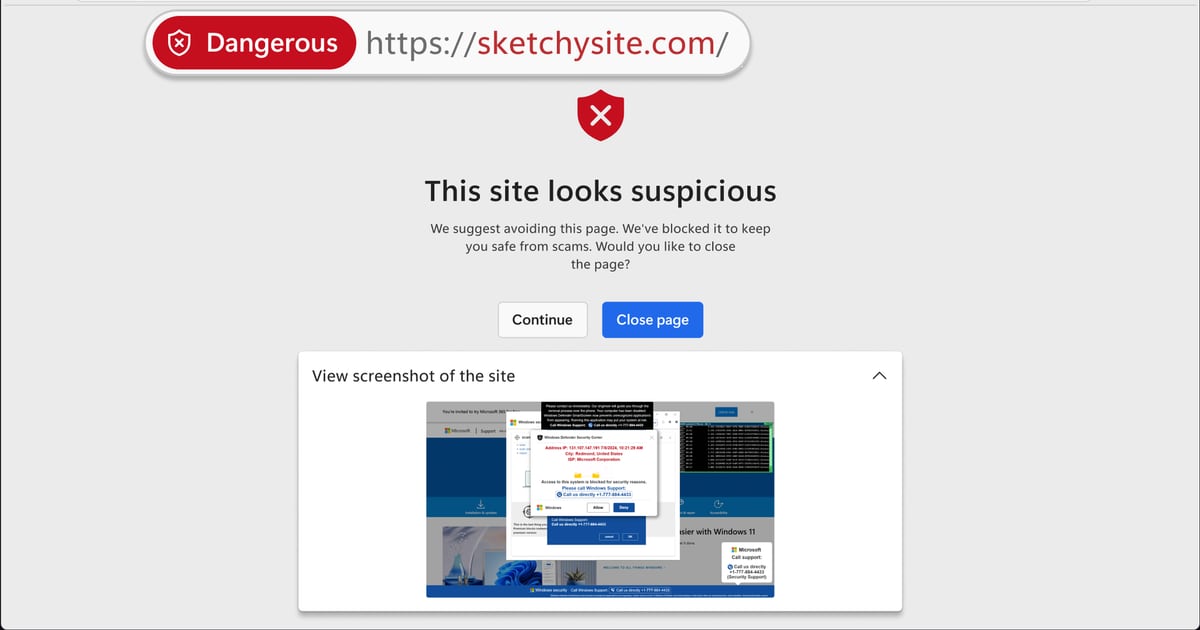
Microsoft Edge blocks notification sources linked to detected scams
November 3, 2026
Read Original: MicrosoftMicrosoft outlined changes to Edge's handling of malicious website notifications in a November 2 blog post. Following Edge 156's rollout last month, the browser can disable notifications from a site when a notification leads to a scam detected by Microsoft Defender SmartScreen or Scareware blocker.
An information bar explains the decision when Edge next starts, and users can review blocked sites in Settings. Microsoft also described a Block and report option for notification permission requests, allowing people to submit the requesting URL and a screenshot. The announcement describes notification protections, rather than the launch of Scareware blocker itself.
JetherVerse perspective: businesses should treat browser permissions as part of the everyday working environment. A useful staff briefing would explain the difference between a website asking to send notifications and a company's own security tools reporting a problem. The message should be simple enough that someone handling customer orders can act on it without becoming a browser specialist.
For a small team, prepare a short response route before an alarming message appears. Name the person or support channel employees should contact, and show where genuine internal support details are recorded. Avoid making an unfamiliar warning the place where someone must decide whom to trust or what payment to make.
Website owners have a related responsibility. If a site requests notifications, explain the benefit in plain language and let visitors make a clear choice. Ask whether the request belongs at that stage of the visit and whether customers can easily change their minds. A permission prompt should support the service being offered, rather than compete with the task a visitor came to complete.
Our suggested follow-up is a short team walkthrough: review the browser version, inspect notification permissions on a test profile and rehearse how to report an unexpected warning. Keep the exercise practical and avoid promising that any single browser feature will catch every deceptive message. Clear ownership and calm reporting still matter.
Image: Microsoft's illustrative Scareware blocker warning, not a live incident.
Source:Microsoft